Forgotten your CAO password? That does not mean starting over. On the official CAO site, www.cao.ac.za, there is a recovery option that issues a new password for the application you already have. Below you will find that process in plain steps, the details to have ready, what to try when the message does not arrive, and how to pick a lasting password once you are signed in again.
First, Check Which Tool You Actually Need
Pause for a second before you reset anything, and ask yourself whether you actually need a password for what you want to do. Plenty of students start a reset when all they wanted was a quick look at their status — and checking your status does not ask for a password at all.
- If you only want to follow the progress of your programme choices, head to Check My Application on the CAO homepage. One identifier is enough there: your CAO number, your South African ID number, or your passport number. No password comes into it. See CAO Status Check.
- If, on the other hand, you need to finish your application, upload documents, change your details, or put in a Change of Mind, you will need the applicant login — and that login runs on your CAO number plus your password. Recovering that password is what this page is about. For signing in itself, see CAO Login.
Resetting a password you never needed only eats up your time, and it can leave you second-guessing which tool does what. When in doubt, try the status checker first with your ID number. If your application shows up there, you know it exists — the only thing missing is the login password.
What You Need to Reset Your CAO Password
According to the 2027 Entry FAQs from CAO, the reset asks for four things:
- Your CAO number, just as it was given to you when you applied.
- Your ID number, just as you typed it into your online application. If you applied from outside South Africa, use the passport details from your application wherever the form asks for identification.
- Your surname, just as you typed it into your online application. This one trips up more resets than anything else: one spelling slip, a missing hyphen, or a second surname written differently, and the match fails.
- The validation code on your screen. CAO shows you a code during the reset — most students just call it a captcha. Copy it exactly as it appears.
You will also need to still be able to open the email inbox or cell number you gave on your application, because CAO sends the new password to one of those contacts, depending on which option you pick. If you have lost access to both, sort out your changed contact details first — there is a section on that below — since a message sent to an old address simply will not find you.
Forgot your CAO number too? Get that back before anything else. The reset form needs it, and guessing will only fail. See How to Find Your CAO Number.
How Do I Get My CAO Password? The Official Reset Steps
Work through the steps below on the official CAO website and nowhere else. Never type your CAO number, ID number or surname into another site that promises to recover a CAO password for you.
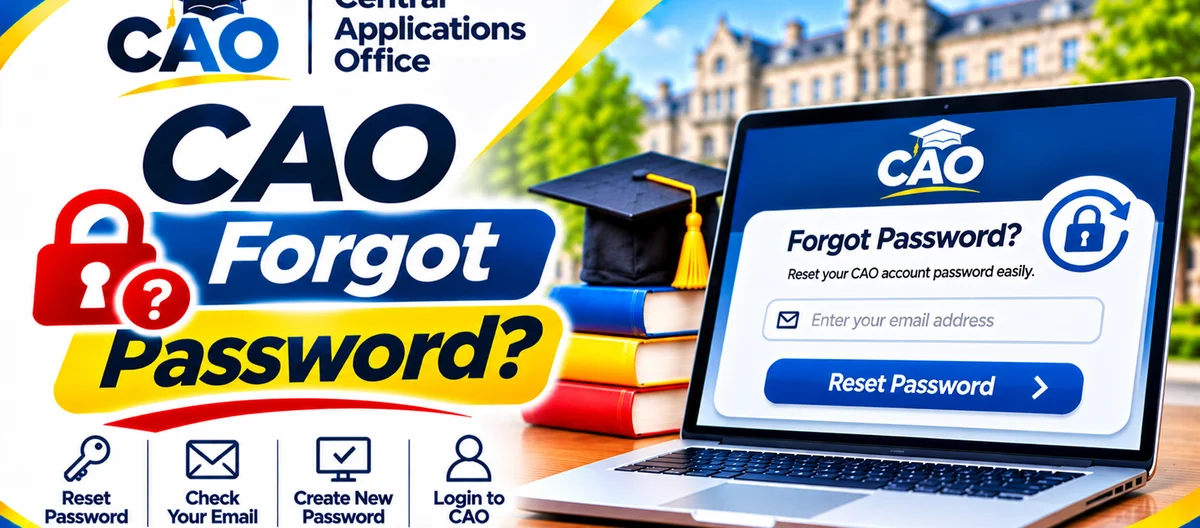
- Go to www.cao.ac.za.
- Select Login.
- Look underneath the login box. To get a new password so you can log in and finish your application or upload documents, choose Here on screen, as the 2027 Entry FAQs direct. The button or link may be worded as a password recovery option — either way, use that recovery link under the login box, not the main login button.
- Type in your CAO number, your ID number, and your surname, matching your online application exactly.
- Type in the validation code shown on your screen.
- Submit the form.
- If the system gives you a choice, pick whether the new password should come by email or by SMS.
- Now watch your email inbox or your phone for the message from CAO. If nothing lands in your inbox within a few minutes, look in your spam or junk folder too.
- Sign in with your CAO number and the new password you have just received.
- Once you are in, use the Change Password function straight away to choose a permanent password of your own. The temporary password only lasts 24 hours, according to CAO's FAQs, so this is not a step to put off until tomorrow.
Keep that permanent password somewhere safe and private — written down where only you will find it, or in a password manager you control. A shared note, a public post, or a screenshot other people can see is not a safe place for it.
Why the Reset Fails: The Surname Problem
When a reset fails, the system is rarely at fault. Far more often, what you typed just now does not line up with what went onto the original application. CAO's FAQs hammer this home for a reason: your CAO number, ID number and surname have to match your online application exactly.
Run through these checks before you try again:
- Spelling. Go through your surname letter by letter, comparing it with your identity document and with any letter or email CAO has sent you. One swapped letter is enough to fail verification.
- Hyphens and spaces. If your surname has a hyphen, a space, or two parts, write it exactly as it was first entered. Do not add or drop a hyphen as a guess — instead, check your CAO correspondence, which may show how the surname was recorded.
- Maiden or previous surname. If the surname you use now is not the one you applied under, the reset needs the application surname, not your current one.
- ID number digits. Look out for two digits swapped around. Reading the number out loud, digit by digit, against your identity document often catches it.
- CAO number. Make sure it is your own number, for the right entry year and term — not a friend's number, not an EasyPay number, and not a number from a different application.
If you have checked everything against what is on record and the reset still fails, stop guessing. More failed attempts will not help and only muddy things. Move to the contact step below, with your CAO number and the exact message you saw in hand.
What to Do If the Reset Message Never Arrives
When the reset message never shows up, there is usually a straightforward reason. Work through the possibilities in this order:
- Give it a little time, then look again. Email and SMS can run late, especially when the system is busy.
- Check your spam, junk and promotions folders for an email from CAO, and make sure your phone has signal and is not blocking messages from unknown senders.
- Be sure which contact you picked. If you picked email, check the email address on your application. If you picked SMS, check the cell number on your application. A message sent to the address on file will not turn up on a different address you happen to use now.
- Check whether your contact details have changed. CAO's FAQs say that if the email address or cell number you gave has changed, you need to update your details first. Go to www.cao.ac.za, choose the Update My Details icon, and follow the prompts. You may change your contact details as many times as you need to, and the change costs nothing. Once the update is done, run through the password reset steps again to get a temporary password.
- Check that your application is complete and paid, if you are updating details. To update your details through that function, your application must be fully completed and fully paid. If it is not finished yet, finish it first through the login route for unfinished applications, or ask CAO for guidance on your own case.
- Try the other delivery option, if you are offered one. If the email never arrived, try SMS instead — or the other way round — as long as both contacts on file are still yours.
If none of that brings a message, get in touch with CAO directly instead of opening a new application. A second application only creates duplicate records, and it will not unlock the first one.
Setting a Strong Permanent Password
The moment you are back in with a temporary password, set a permanent one right away. Pick something you can remember without leaving it lying around where others can see it, and nothing someone could guess from your public details.
- Steer clear of your ID number, CAO number, date of birth, cell number, or a family member’s name.
- Try not to reuse a password you already use for social media or email.
- A mix of letters and numbers that means something to you, but nothing obvious to anyone else, works well.
- Once you have changed it, log out and log back in once with the new password, while it is still fresh in your mind, just to be sure it works.
On a shared computer, always log out, close the browser, and do not let that browser save your password.
What Not to Do When You Forget Your Password
- Do not open a new CAO application just to get a new password. You will be left with two applications, while the original one — with its programme choices and payment history — stays locked.
- Do not hand your CAO number, ID number, surname and validation code to an unofficial helper offering to reset your password for you. Together, those details are enough to get into your account.
- Do not pay anyone to recover a CAO password. CAO's own reset does not ask you to pay a third party anything.
- Do not type your details into any site that is not cao.ac.za, even if it looks just like the CAO portal. Glance at the address in your browser first, before you type a thing.
When to Contact CAO
Get hold of CAO if the reset form keeps rejecting details you have already checked against your application and CAO correspondence, if your contact details have changed and the Update My Details route has not sorted it out, or if a temporary password you received stops working before its validity period is up. The 2027 Entry FAQs list the call centre as 031 268 4444, open Monday to Thursday 08h00–16h30 and Friday 08h00–14h00, except public holidays; from outside South Africa, dial +27 31 268 4444, and the same number offers a self-help option after hours. Before you call, have your CAO number, your ID number, your surname as recorded on the application, and the exact error message ready. If yours is a login failure rather than a forgotten password, also read CAO Account Login Problems.